Comparison Ad
Show why your way is better: the old way crossed out, a side-by-side comparison table and one strong proof that seals the case.
Best forHow to make a video with Comparison Ad
Six simple steps, from your idea to a finished video. It takes about five minutes.
Open the template
Press Use this template on this page. Sign in, or make a free account in a few seconds. The studio opens with Comparison Ad already picked.
Later, you can find it again under Templates in your dashboard.
Use this template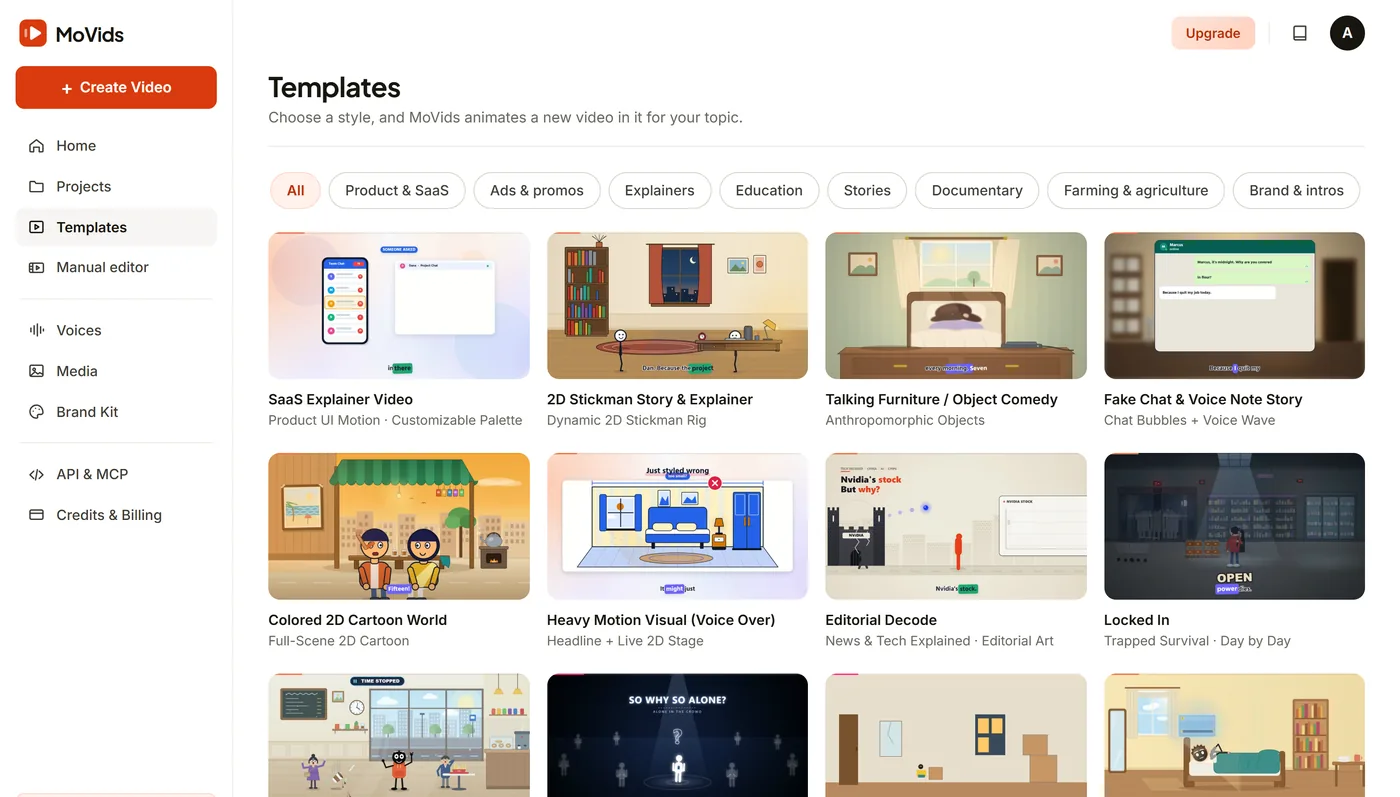
Tell MoVids what the video is about
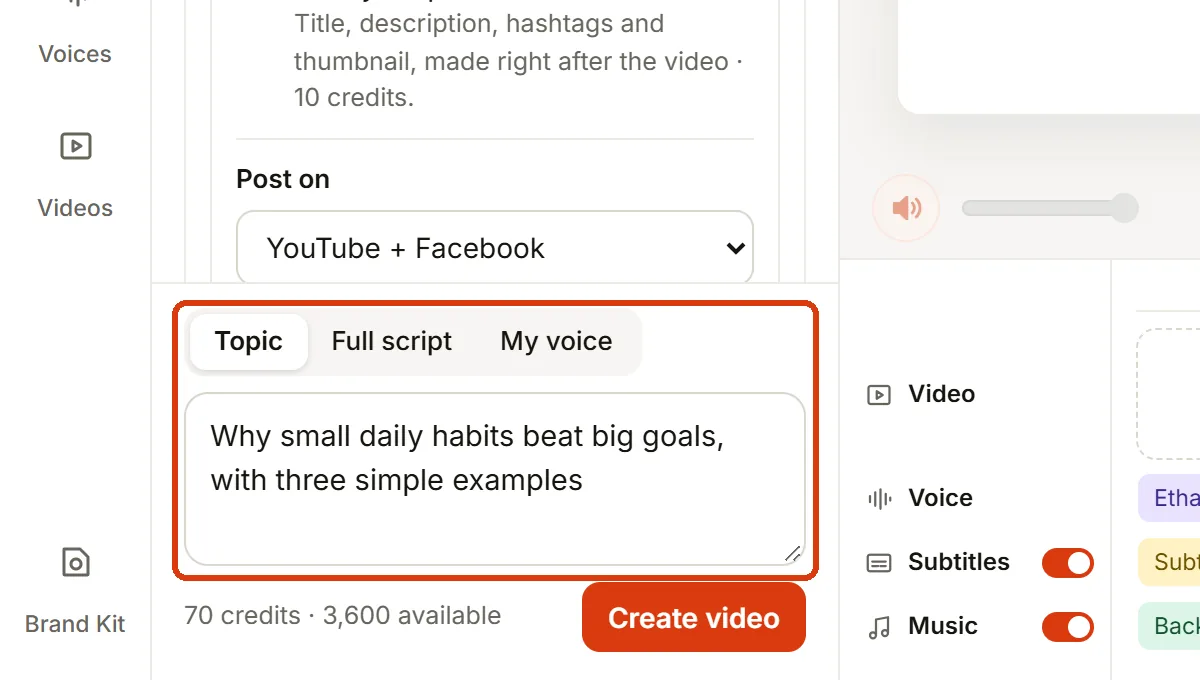
Type one line in the Topic box. For example: "Why switching from spreadsheets to a project tool saves hours every week".
Already have the words? Choose Full script and paste them. MoVids reads them as they are. Want to use your own voice? Choose My voice and record or upload it.
Pick a voice and a length
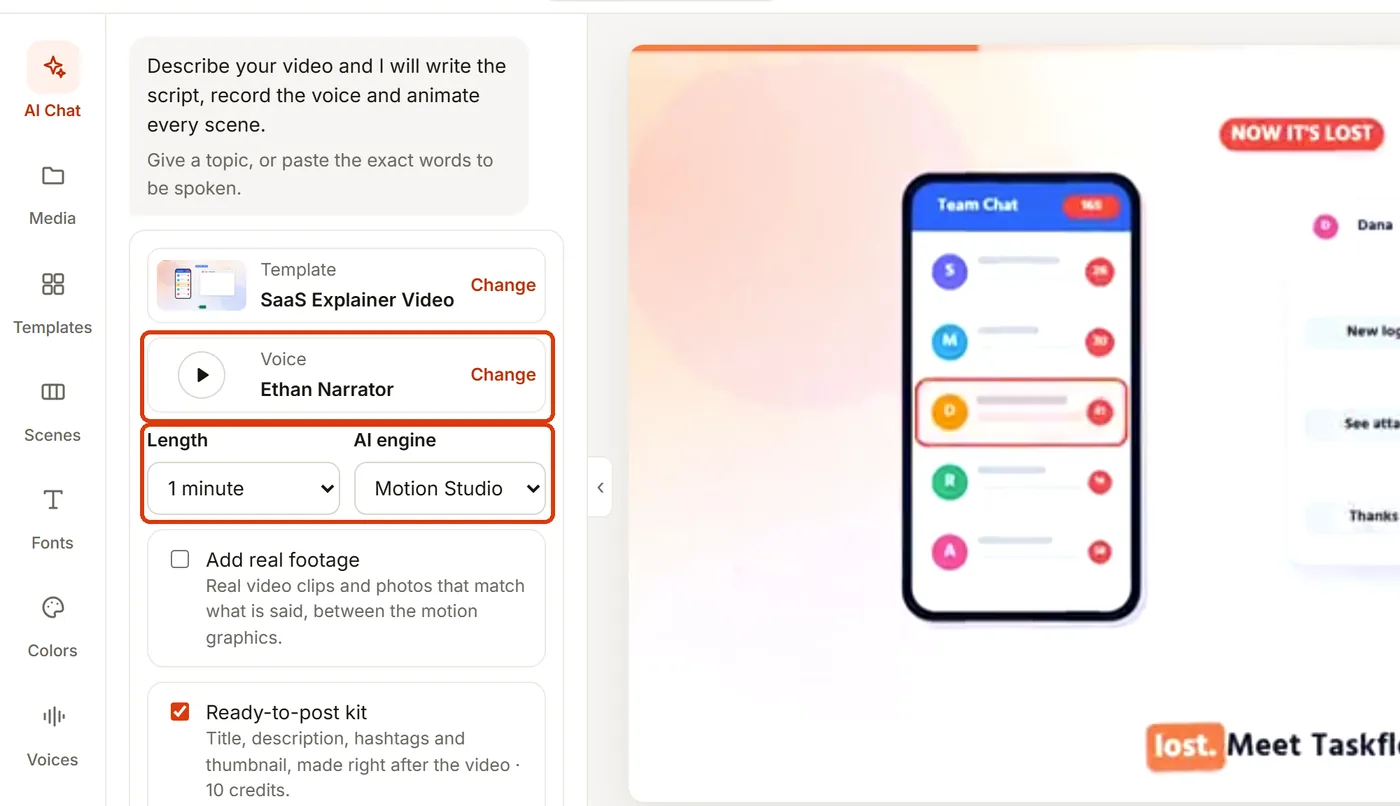
Press Change next to the voice to hear the samples. For Comparison Ad, an upbeat, energetic voice works well.
This template is wide (16:9), made for YouTube, Facebook and websites. Choose a length. The demo above is 35 seconds long.
Add your brand (optional)
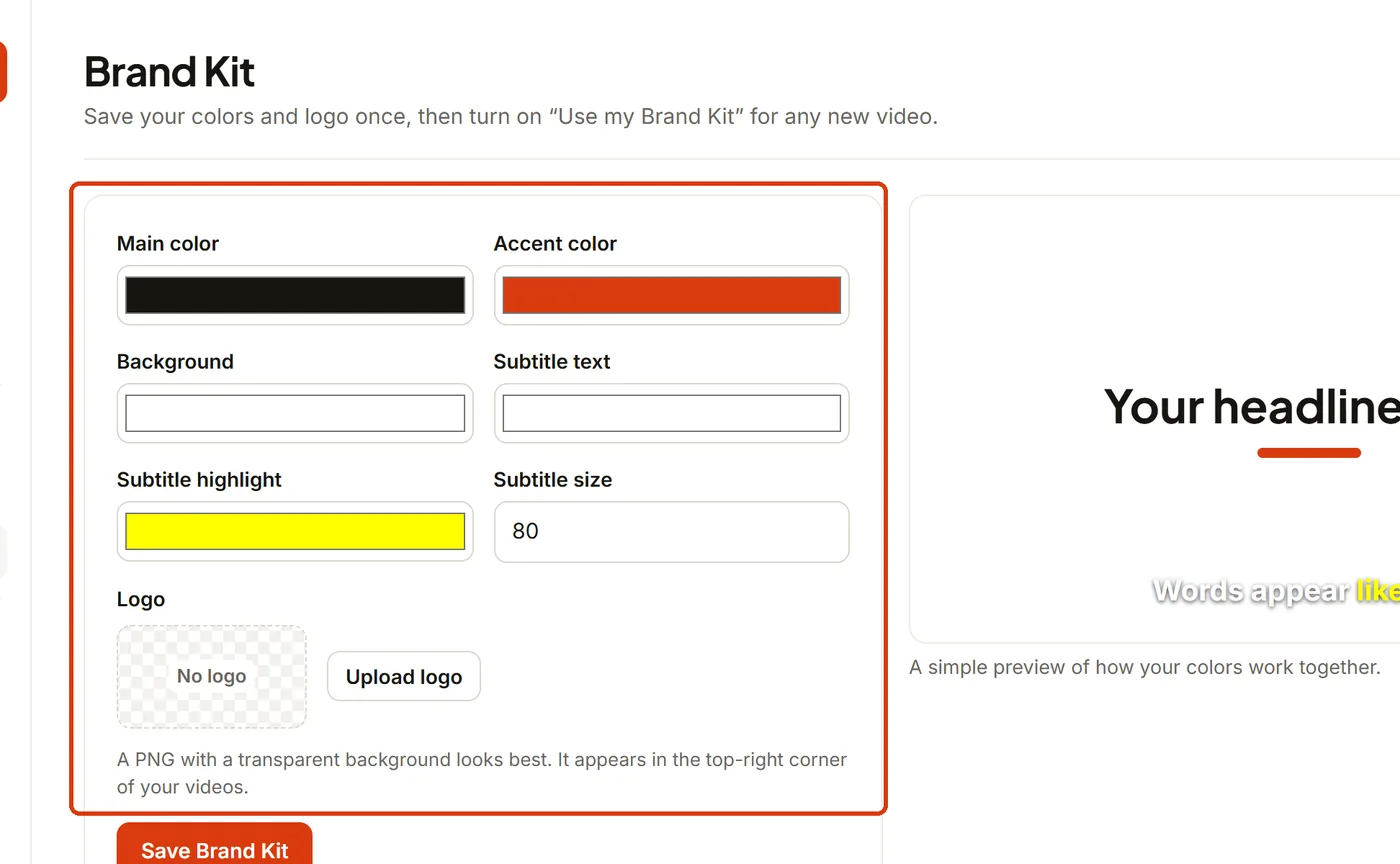
Set your colors, subtitle style and logo once in Brand Kit. Then turn on "Use my Brand Kit" and every video you make looks like yours.
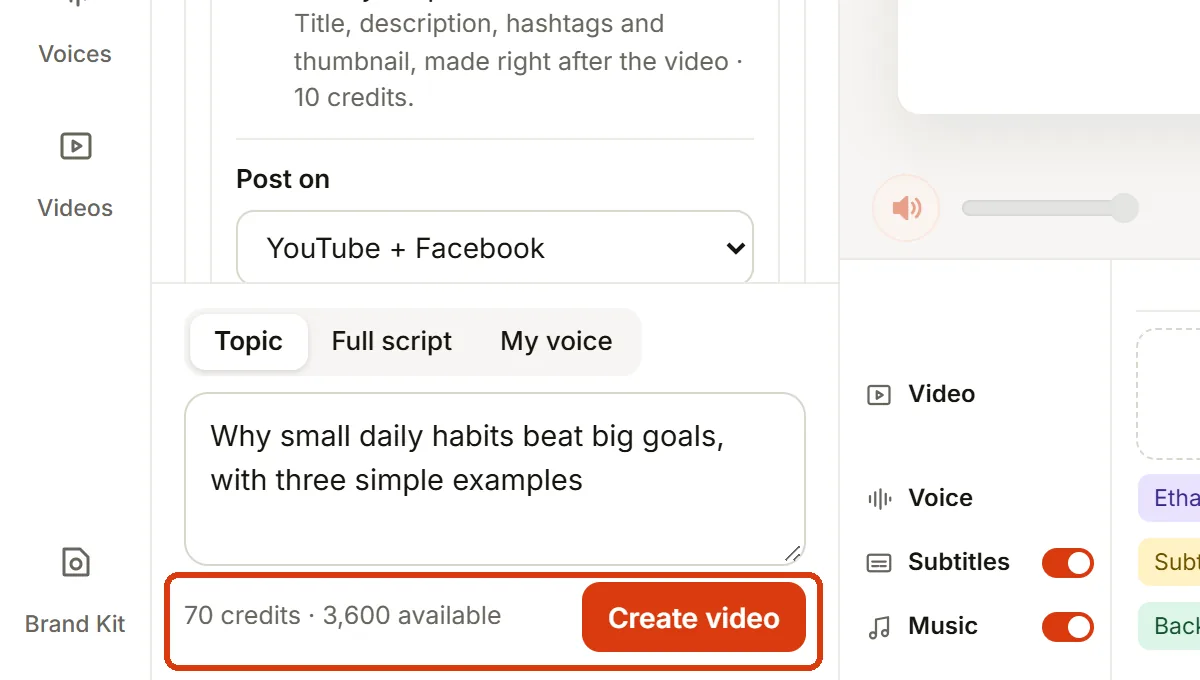
Press Create video
MoVids writes the script, records the voice, animates every scene and adds subtitles and music. 1 credit is 1 second, so a 35-second video uses about 35 credits.
Most videos are ready in a few minutes. We email you when it is done. If anything fails, your credits come back.
Download and post
Your video appears in Projects. Watch it, then download the 1080p MP4 or share it straight away.
Turn on the ready-to-post kit to also get a title, description, hashtags and a thumbnail for YouTube and Facebook.
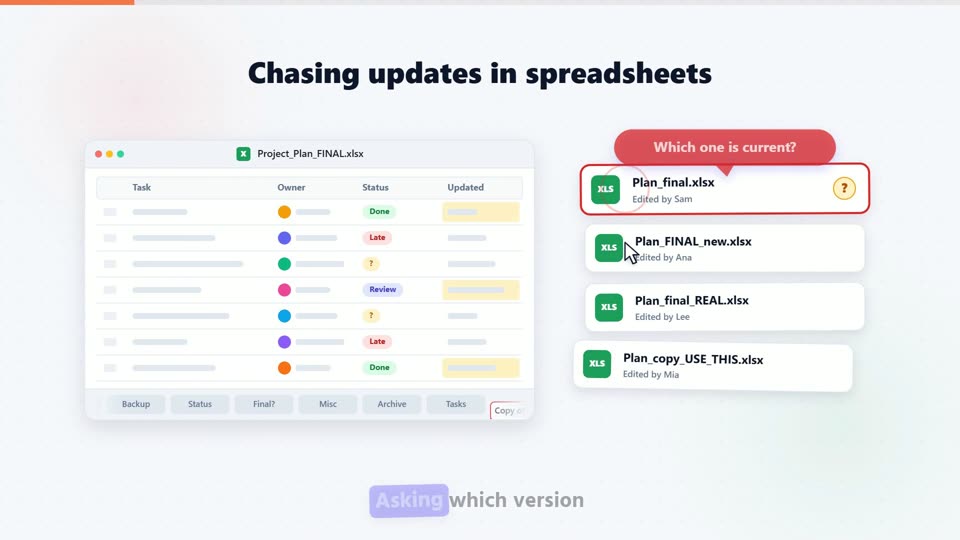
Tips for a great Comparison Ad video
- Start with the problem your customer has.
- Put your offer in the topic, like "20% off this week".
- Add your business name and how to reach you at the end.

Make your own Comparison Ad video.
Pick a template, write your topic, and download a finished MP4.
Start creating